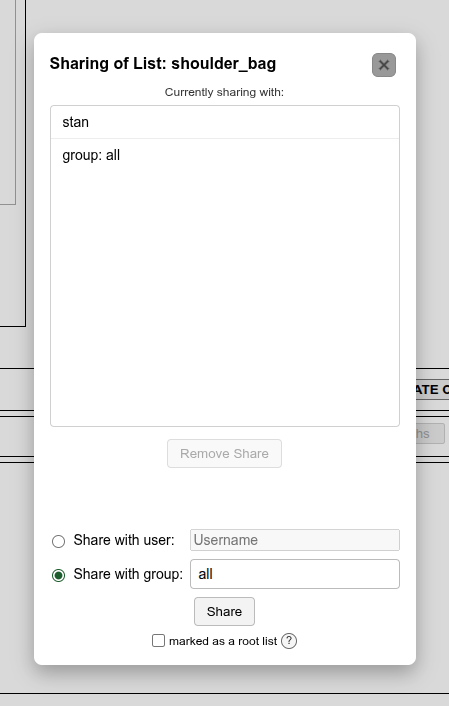
Each user has a home folder with their own lists and sub-folders. These are private and not visible by another user. However, any list (or python script) can be shared with other users, either directly (only with a specific user) or indirectly through a group of users.
You can also benefit from having any list shared with you, either as linked from one of your lists, or run as the root of a new list generation process. When generating a checklist, a link to a shared list behaves the same as linking to another list within the user's home folder.
¶ Group Access
A group is a collection of users, which is intended to be for the employees/members of a company or organization. Any member of a group can share a list which can then be linked by any other member. Only the admin user of the group is able to add or remove members from the group. A group can be created by clir administration upon request.
The group all is a special group that every user automatically has access to. Anyone can share a list with this group, or revoke their share at any time.
¶ Access
When you link to a list shared by another user, the generation process has access to that list, and any other list that it links to in the sharer's home folder--even if the other list(s) aren't directly shared with you. However, this doesn't apply to a secondhand shared link. For example, if User A shares a list with you, and that list links to a list belonging to User B, then you must have share permissions for User B's list (either direct or indirect through a group) for the generation process to work. It will not succeed if User B only shared the list with User A.
¶ Share Visibility
A list shared by another user can be used as part of a checklist generation process. While the final output is visible afterward, a shared list's contents are not visible in the editor. This includes the markup language portions, prompt syntax, and conditional logic. In other words, while the final contents are visible, the methods for generating it are not. This also means that the share recipient cannot make changes to a shared list.
The top comment header of a shared list or python script is the one part that is visible. In both a list and python script, any line preceded with # is treated as a comment line and thus ignored by the process. From the start of the file up to the first part of the list or markup, comment lines are visible to share recipients. Once the first non-comment line is reached, the rest of the file is invisible to all but the owner.
It is good practice to add helpful comment lines to a shared list, in order to help recipients understand what it contains and how it should be used.
¶ Variables Are Not Shared
When your list links to another user's list which is shared with you, variables are not shared across the link. Any variable that is set with a value in your list(s) will not be seen inside the shared list. Likewise, any variable value in the shared list(s) will not be accessible in your lists.
What is shared is the resulting text output of those lists.
¶ Share Controls
¶ Viewing What is Shared with You
The List Browser in the Editor page contains a “sharer” section that displays users and/or groups that are sharing at least one list with you (groups have the (group) suffix after the name).
¶ Viewing What You Share With Others
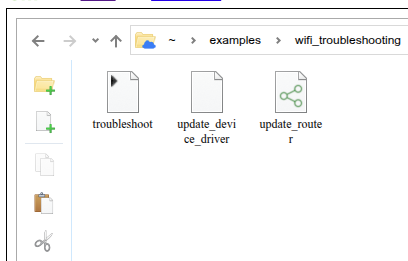
The Editor page's List Explorer contains a pop-up window that allows you to see which files you are sharing, and lets you make changes. Any list that is currently shared has the “3-dot” share icon, as shown in the screenshot below.
In order to open a file's share settings, highlight it (only one file) and click the share button on the left side of the Explorer. Here, you can see all users and/or groups that the file is shared with. For a group share, the combo box will provide a selection of only the groups that you have access to. For a direct user share, you will need to enter the recipient's username. To revoke a share, highlight the user or group and click the “Remove Share” button.